Parental Skype Recorder Quick Start
Installation
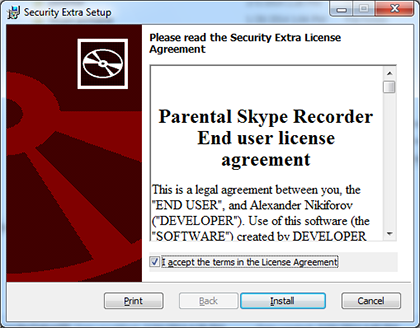
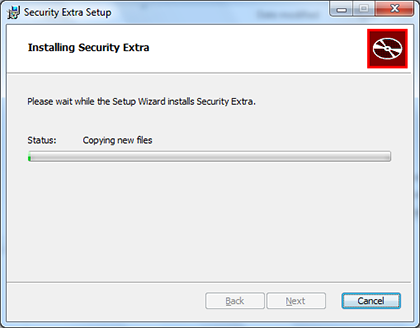
The application is provided as msi installation file. Save it and double-click on on it to start the installation. Confirm your agreement with the End User Licence Agreement (EULA) by ticking under ther text and proceed with installation.
The program will start automatically after installation.
Parental Skype Recorder is completely hidden whilst it is working. To see the hidden window, use the special hotkey combination. The default is Ctrl+Shift+Alt+S. You can change the hotkey combination and set a password for access to the program window at any time, please see the Parental Skype Recorder manual for more details.
Note:You may need to reboot your computer if the program does not start automatically after installation.
New feature
New version of Parental Skype recorder does not use Skype API. Hence you do NOT need to confirm access in Skype to start monitoring and recoding Skype.
Activation
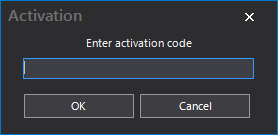
To activate your copy of Parental Skype recorder, click the Activation button on the main window and enter your activation code. The Activation panel will disappear after activation. Alternatively, the recorder can be activated by using the top menu.

Making recorder visible
Normally recorder is hidden and work as background process while monitoring Skype activity and recording calls. Use Ctrl+Shift+Alt+S hokey combination to unhide it. You can change this combination and setup password to restrict access to recorder.

Recording
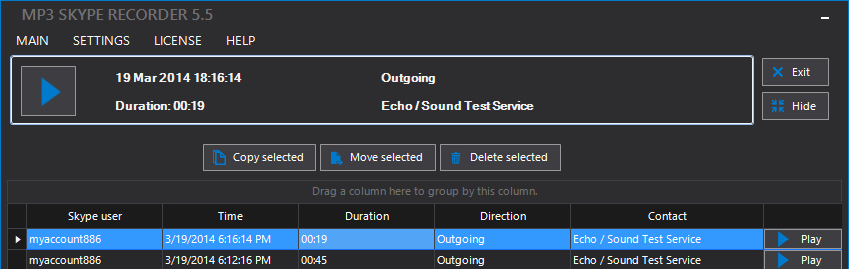
Once activated the recorder will automatically start monitoring all Skype users' activity and record all calls.
Call the Skype test center (Echo123) to test the recording process. After you have made the test call, open the Parental Skype Recorder window (using Ctrl+Shift+Alt+S) and check the recorded conversation.